
Deliverables and versions
Deliverables and versions, ready for review
Add deliverables to a project, organize them in folders and keep every version. Invited client contacts preview images and PDFs in their portal, review the current version and approve it, all in the same place.
14-day free trial. No card required.
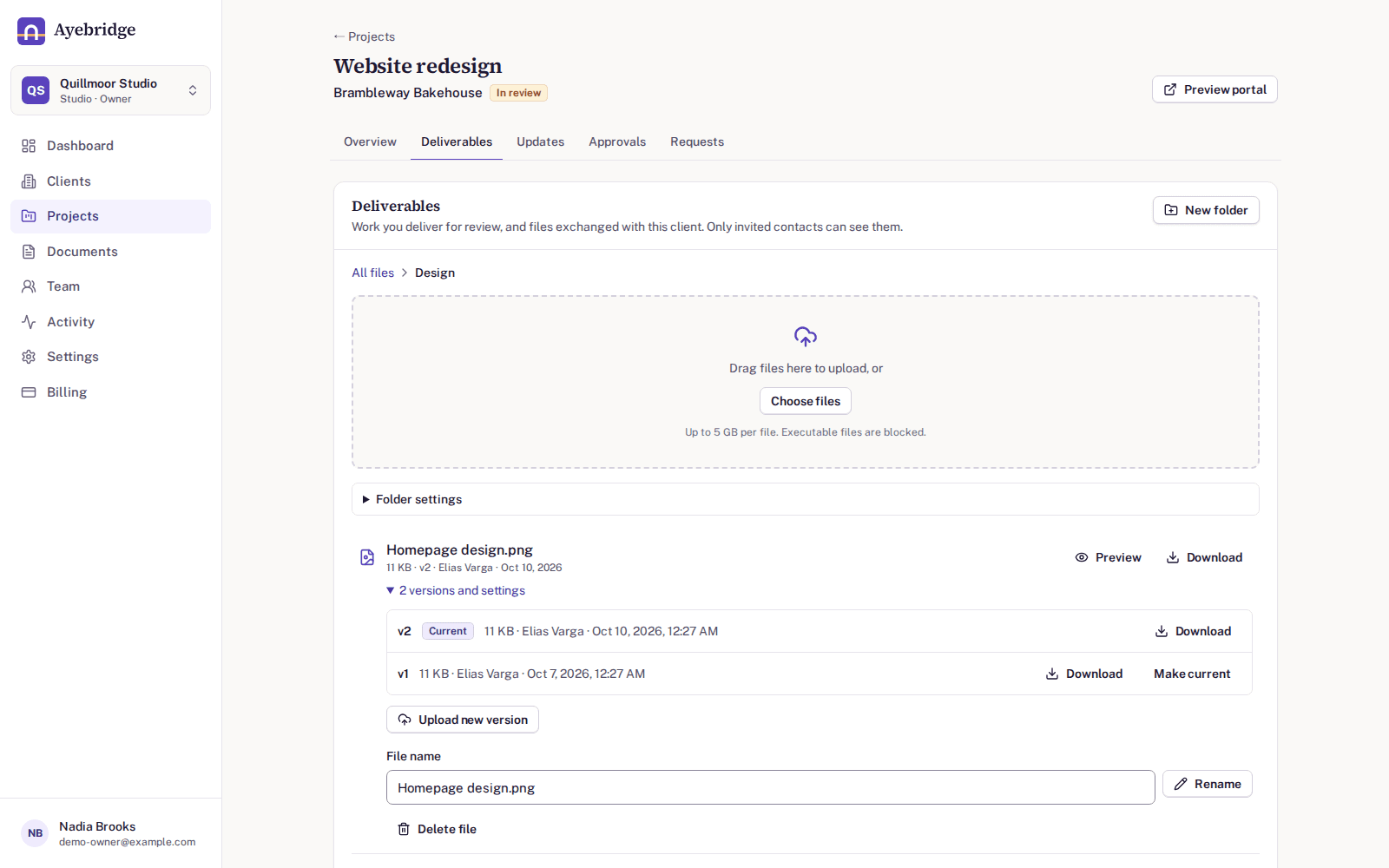
Versions instead of file names
When you add a revision, it becomes the next version of the same deliverable (v1, v2, v3), and earlier versions stay in the version history. Nobody has to work out which attachment is the latest, and your team can restore an older version if needed.
Folders that follow the project
Group deliverables in folders the way the project is organized, such as by phase or by format. Drag and drop to upload; bigger exports are uploaded in parts so a slow connection does not mean starting again.
Previews for images and PDFs
Clients can look at images and PDFs in the portal before deciding anything, which keeps quick reviews quick. Other formats can be opened from the portal by invited contacts.
Linked to approvals
Request approval on a deliverable and the request points at the exact version you shared. If a new version follows, the earlier decision still shows which version it was about.
Private to the people you invite
Deliverables are kept in a private storage bucket. Only your team and the invited contacts of that client can reach them, and each download goes through a signed link that expires a few minutes after it is created. There are no public pages or links.
Executable files blocked
Executables and scripts (for example .exe, .msi, .bat, .sh, .dmg and .apk) are blocked at upload by default, on both the file extension and the reported file type.
Deliverables and versions: common questions
Who can see a deliverable?
Your team and the invited contacts of the client the project belongs to. There are no public links, and every download link is signed, short-lived and created for a signed-in person.
Are old versions deleted when I add a new one?
No. Each new upload to the same deliverable becomes a new version, and earlier versions stay in the version history.
Is there a size limit per upload?
Yes, it depends on the plan: Solo: 500 MB · Freelancer Pro: 2 GB · Studio: 5 GB · Agency: 10 GB · Agency Plus: 20 GB · Scale: 20 GB. During the free trial the limit is 500 MB.
Which file types are blocked?
Executables and scripts such as .exe, .msi, .bat, .cmd, .ps1, .sh, .jar, .dmg, .pkg, .apk and disk images are blocked by default.
Can clients add files too?
Yes. Clients can upload files when answering a request, and add new versions of files they uploaded themselves.
Related features
Approvals
Ask for sign-off on a specific version and keep a permanent record of the answer.
Client portals
A private portal for each client, showing their projects and nothing else.
Requests
A checklist of what you need from the client, with replies, uploads and due dates.
Give every client one clear place for their project
Try Ayebridge free for 14 days. No card is required, and nothing is deleted if you decide not to continue.